顯示具有 程式 標籤的文章。 顯示所有文章

2014/12/31

【C#】製作不規則的視窗

  在C#中要建立不規則視窗(Irregularly Shaped Window)非常簡單,只需要準備一張欲顯示形狀的底圖並修改幾個視窗屬性(Window Properties)即可完成:
  1. 設定FormBorderStyleNone

    可透過設定頁面完成設定或是直接撰寫程式
    FormBorderStyle = System.Windows.Forms.FormBorderStyle.None;
    
  2. 指定BackgroundImage並依據需求設定BackgroundImageLayout
  3. 設定TransparentKey為底圖不要顯示部分的顏色,若使用範例圖片則設定為白色
  4. 到目前為止已經完成客製化的視窗介面,編譯並執行可以看到視窗呈現愛心形狀,心型以外區域可以顯示桌面內容,點選心型以外的區域也可不受限制
  因為一開始我們把FormBorderStyle設定為None,邊框都不顯示連帶的最上面的標題列與控制盒(最小、縮小、最大化按鈕)也一併被取消了,因此若需要相關控制必須自行增加相關按鈕實現,底下示範移動視窗功能:
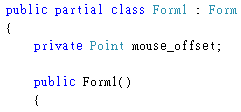
  1. 切換到檢視程式碼視窗,在視窗類別中增加變數
    private Point mouse_offset;
    
  2. 增加MouseDown事件
    private void Form1_MouseDown(object sender, MouseEventArgs e)
    {
        mouse_offset = new Point(-e.X, -e.Y);
    }
    
  3. 增加MouseMove事件
    private void Form1_MouseMove(object sender, MouseEventArgs e)
    {
        if (e.Button == MouseButtons.Left)
        {
            Point mousePos = Control.MousePosition;
            mousePos.Offset(mouse_offset.X, mouse_offset.Y);
            Location = mousePos;
        }
    }
    
  4. 若不是透過屬性視窗新增事件,記得自己手動加入事件註冊
    this.MouseDown += new System.Windows.Forms.MouseEventHandler(this.Form1_MouseDown);
    this.MouseMove += new System.Windows.Forms.MouseEventHandler(this.Form1_MouseMove);
    
  完成上述步驟後,此視窗就可以透過滑鼠左鍵拖曳進行移動了!

範例用圖:

2012/10/31

【Windows8】取得Auto Rotation狀態

先前同事提了個需求要能用程式判斷當前Auto Rotation狀態,查了一下發現有個GetAutoRotationState()函數可以調用,透過這函數呼叫可以查知目前系統Auto Rotation是否被開啟,直接看程式內容吧!

 1
 2
 3
 4
 5
 6
 7
 8
 9
10
11
12
13
14
15
16
17
18
19
20
21
#include <Windows.h>
#include <tchar.h>
#include <stdio.h>

#pragma comment (lib, "User32")

int _tmain(int argc, _TCHAR* argv[])
{
 enum tagAR_STATE state;
 bool blResult = GetAutoRotationState(&state);
 if(blResult)
 {
  if(0 == state)
   printf("Auto Rotation: ON\n");
  else
   printf("Auto Rotation: OFF\n");
 }
 else
  printf("Access rotation status ... fail\n");
 return  0;
}

需要注意的是這函數是Windows8才加入User32.dll的,因此如果拿這程式在Windows7以前版本執行的話會遇到這樣的錯誤:
如果要避免這樣的錯誤,需要用動態載入dll方式進行呼叫。

在Windows8上執行截圖如下:


附註:tagAR_STATE詳細屬性:
 1
 2
 3
 4
 5
 6
 7
 8
 9
10
11
12
public enum tagAR_STATE : uint
{
 AR_ENABLED = 0x0,
 AR_DISABLED = 0x1,
 AR_SUPPRESSED = 0x2,
 AR_REMOTESESSION = 0x4,
 AR_MULTIMON = 0x8,
 AR_NOSENSOR = 0x10,
 AR_NOT_SUPPORTED = 0x20,
 AR_DOCKED = 0x40,
 AR_LAPTOP = 0x80
}

Keyword:Windows API、System Call

2012/8/15

【C#】縮小命令提示字元視窗

今天同事提了個奇怪的需求:執行程式時要能把命令提是字元視窗縮小,查了一下網路發現可以利用FindWindow()與ShowWindow()兩個函數達成此需求,直接看以下範例:
 1
 2
 3
 4
 5
 6
 7
 8
 9
10
11
12
13
14
15
16
17
18
19
20
21
22
23
24
25
26
27
28
29
30
using System;
using System.Collections.Generic;
using System.Linq;
using System.Text;
using System.Runtime.InteropServices;

namespace HideConsole
{
    class Program
    {
        static void Main(string[] args)
        {
            IntPtr ParenthWnd = new IntPtr(0);
            
            ParenthWnd = Findindow(null, Console.Title);
            if (ParenthWnd == IntPtr.Zero)
                Console.WriteLine("Find Window ... FAIL");
            else
                ShowWindow(ParenthWnd, SW_SHOWMINIMIZED);
        }

        [DllImport("user32.dll", EntryPoint = "FindWindow")]
        private static extern IntPtr Findindow(string lpClassName, string lpWindowName);
        [DllImport("user32.dll", EntryPoint = "ShowWindow")]
        private static extern IntPtr ShowWindow(IntPtr hWnd, int type);
        const int SW_HIDE = 0;
        const int SW_SHOWMINIMIZED = 2;
        const int SW_MAXIMIZE = 3;
    }
}

流程說明:
  1. 用Console.Title找出命令提示字元視窗本身的標題字串,並透過FindWindow找出Handler
  2. 將Handler傳給ShowWindow函數,並傳入參數讓視窗進行改變,範例標了幾個視窗屬性SW_HIDE, SW_SHOWMINIMIZED與SW_MAXIMIZE,完整的參數可以參考MSDN的參考網頁( http://msdn.microsoft.com/en-us/library/windows/desktop/ms633548(v=vs.85).aspx
因使用了DllImport,記得要加入
1
using System.Runtime.InteropServices;

Keyword:How to Minimize Terminal on Windows、C# Programming、Minimize Command Prompt on Windows